






Connecting MIMO Antennas to the T-Mobile 5G G4AR and G4SE Gateways
Before you begin, it’s recommended to run several indoor speed tests using a device connected to your T-Mobile 5G Internet Gateway via Wi-Fi. While results may vary slightly, these tests establish a baseline that you’ll aim to improve.
Once your baseline speeds are measured, you can proceed with installing external antennas.
In the next section of this guide, we’ll explain how to connect external antenna adapters to your T-Mobile 5G Internet Gateway.
Step 1 – Identify The Ports
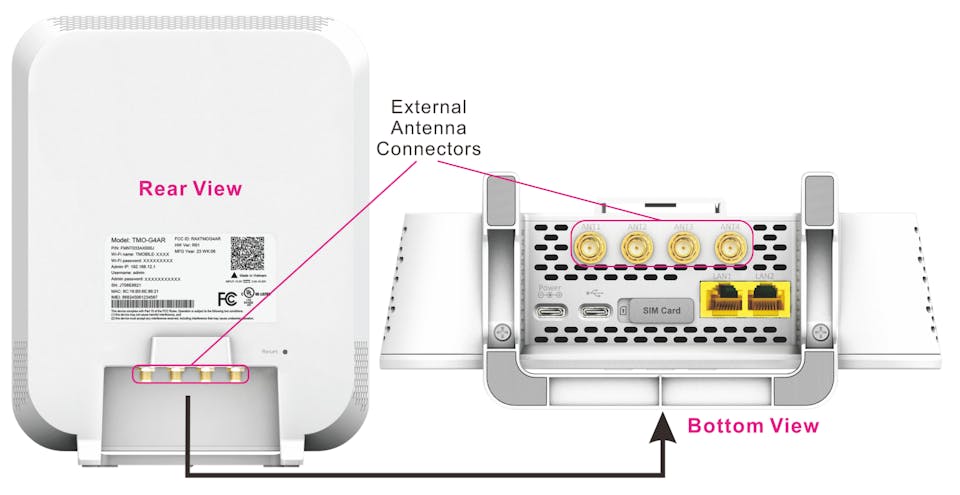
The T-Mobile 5G Internet Gateway has four cellular antenna ports that are labeled “Ant 1” through “Ant 4” and are grouped together on the back of the device. These are the ports your MIMO external antenna(s) will be connecting to.
Step 2- Connect Your Antenna
Step 2 Simply connect the external 4×4 MIMO antenna(s) to the SMA ports on the back of your T-Mobile 5G Internet Gateway.
You’ll connect port 1 and port 4 as normal but we recommend criss-crossing ports 2 and 3 by connecting port 2 to “ANT 3” and port 3 to “ANT 2”.
This may seem odd, but criss-crossing these connections seems to provide a boost in performance.
You can also try the standard 1-2-3-4 arrangement as well to see which works best in your location.

Step 3 – Change the Antenna Mode
Finally, on the built-in display of the gateway, change the antenna settings from “INTERNAL” to “EXTERNAL” to activate the external antenna ports.

Your Gateway will take a few moments to switch antennas. If you receive an error message at this point, read the section near the bottom of this article describing how to fix the issue.
Important Tip: Before you run a new speed test, we recommend power-cycling the gateway, or removing and then re-inserting the SIM card.
Taking this step forces the gateway to search and connect to the best bands available, and we’ve found it can make a big difference in performance.
Congrats! Your T-Mobile 5G Internet Gateway is now connected to your more powerful MIMO External Antennas.
Positioning and Aiming MIMO Antennas
Correctly positioning and aiming MIMO antennas is crucial to getting the best performance to your T-Mobile 5G Internet Gateway, or indeed any other router.
We’ve actually compiled a detailed UHURA instruction manual to accompany our own MIMO Antenna Kits, where we go into depth on the best ways to aim the antennas.
The goal is to find the best location and direction for the antenna(s) to maximize data rates to the hotspot. It can take a little patience, but can have a huge impact – it’s worth a bit of extra effort!
Once you’ve got your external MIMO antennas connected, you’re ready to go outside with your “test-rig”.
With each location and direction you try, run a couple speed tests, and make a note of the results. Here are all the locations and directions where we recommend testing your MIMO antenna:
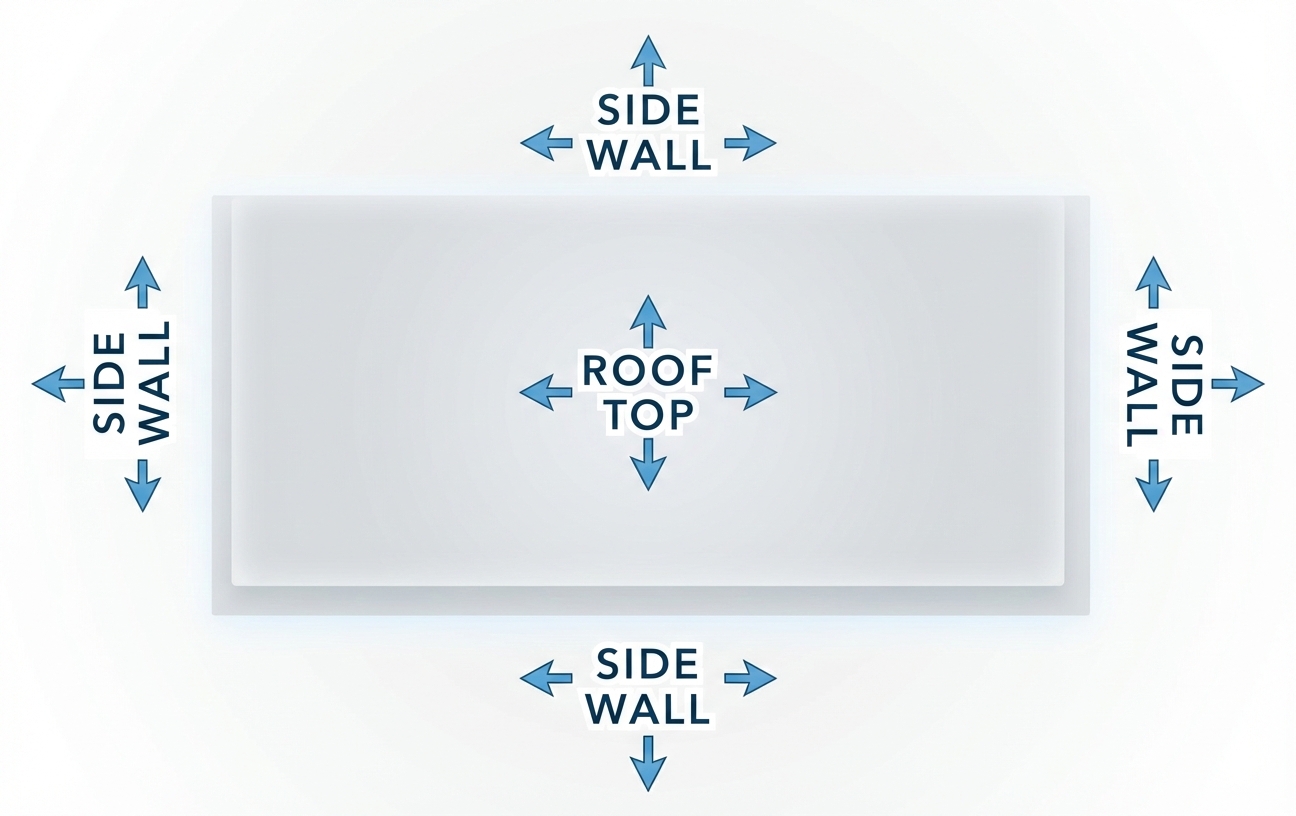
Pro Tip 1: Don’t just go to the highest point of the roof! While signal is generally stronger the higher you go, there’s also often more interference. We’ve found it’s often better to mount the antenna(s) on the side of the building where the structure can shield the antennas from interference.
Pro Tip 2: When you make bigger changes, try either power cycling or removing and re-inserting the SIM card. This forces the gateway to search for the best signal anew and can help improve data rates.
Once you’ve found the position which gets you the highest data rates to your T-Mobile Gateway, that’s where you’ll want to install the MIMO antenna. Go ahead and mount the antenna, run cables inside, connect everything up, and enjoy superior data rates!
How to Fix the “Network connectivity could not be established … check that a supported external antenna is connected” Error Message
In testing our antennas with the G4AR and G4SE gateways, we noticed that an error like this occasionally pops up:
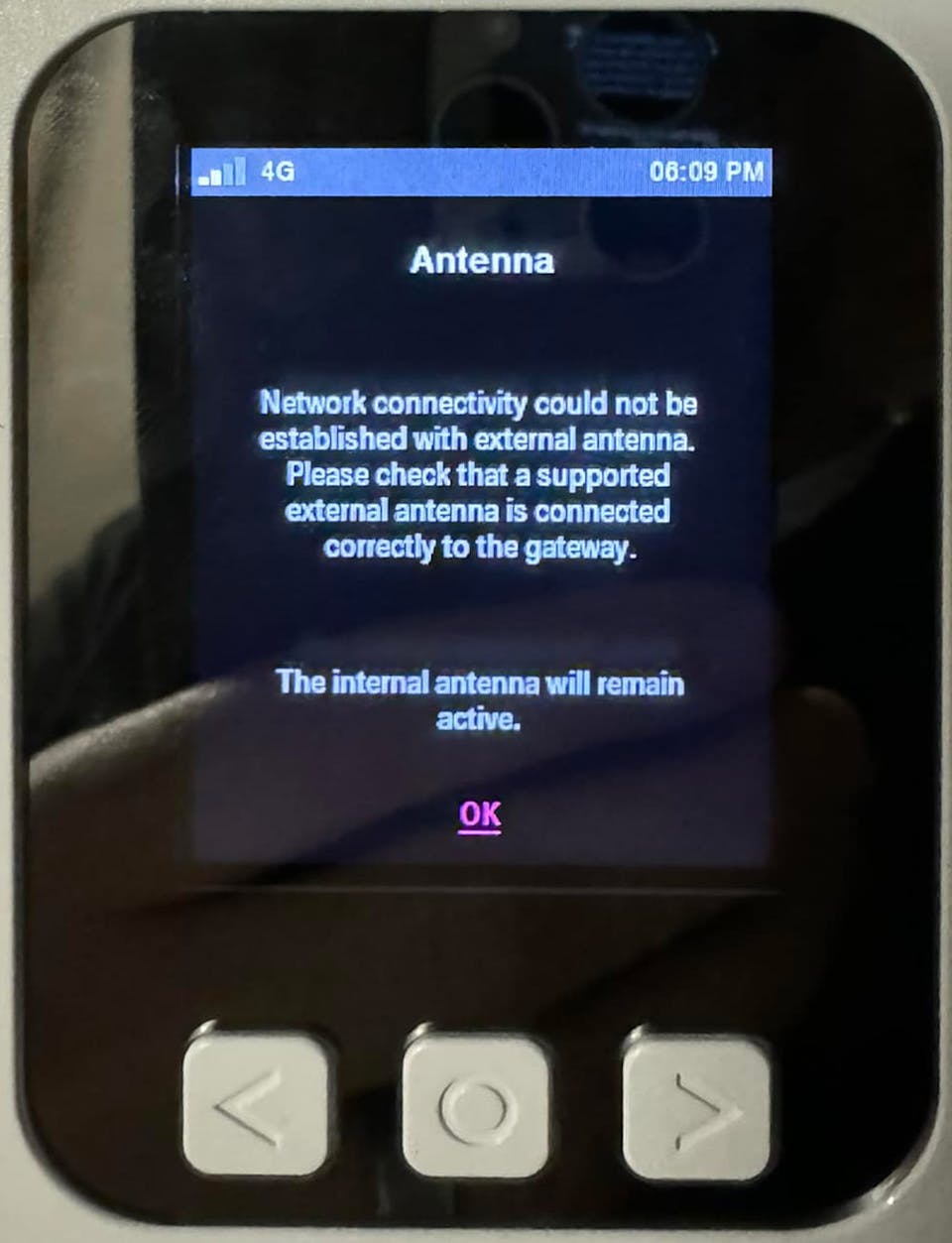
“Network connectivity could not be established with external antenna. Please check that a supported external antenna is connected correctly to the gateway. The internal antenna will remain active.”
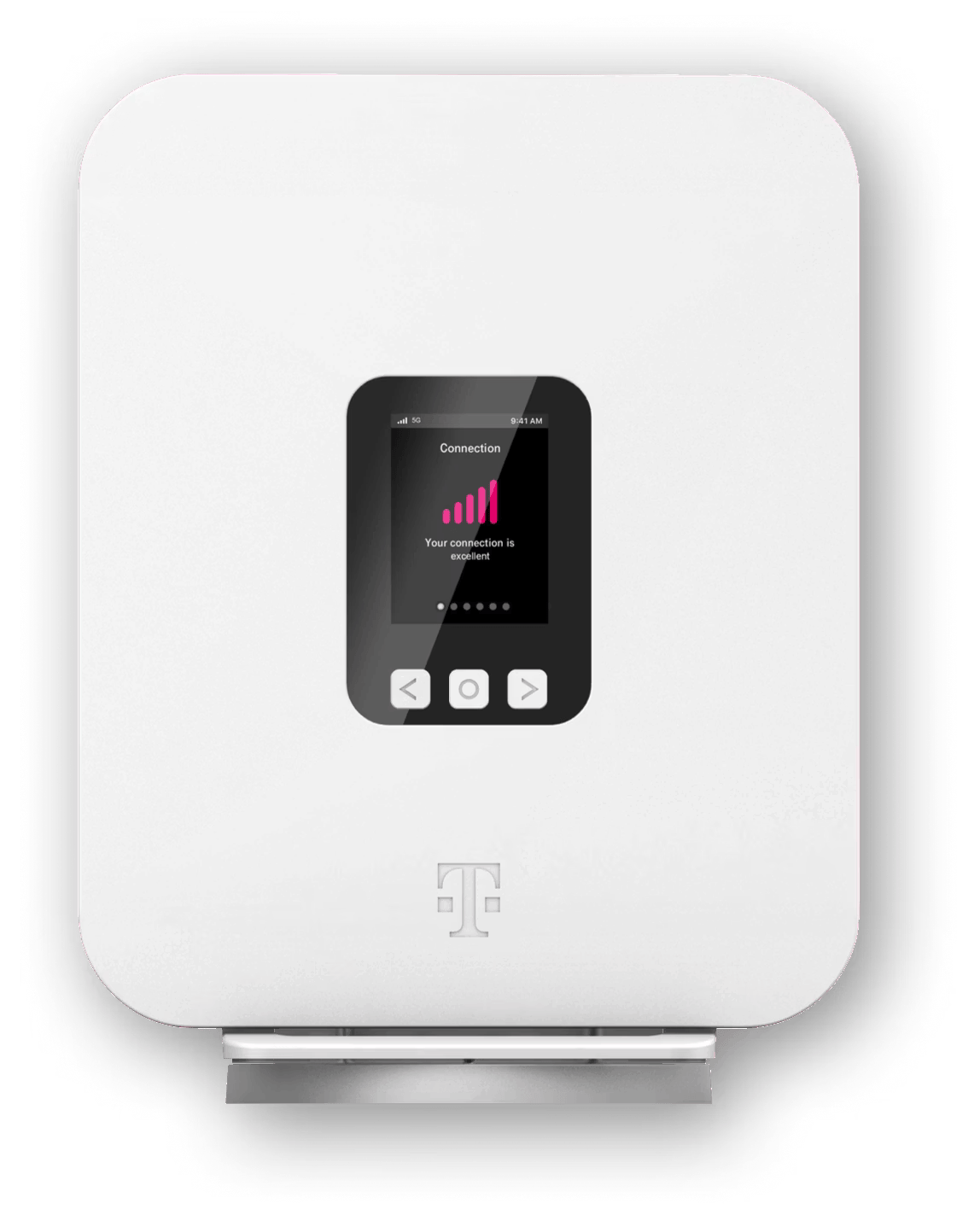
Note the 4G status icon in the top left of the LCD screen.
Photo credit: Brady Hourtienne
After much testing, we found the source of the issue:
This error is triggered if you have no signal or only 4G sign using the internal antennas (i.e. before you try to switch to external antennas).
Frustratingly, the G4AR and G4SE gateways will show this error message even if you have excellent 5G signal coming from your external antenna. Luckily, the solution is simple:
Solution: Take the gateway to somewhere where it can connect to 5G with its internal antennas (even if that means taking it outdoors or driving it to a coffee shop and plugging in there). Once you’re in range of 5G, you’ll be able to switch successfully.
The change to external antennas will remain in place even if you unplug the gateway from power.
T-Mobile 5G Internet Gateway Technical Specifications
- 5G: n25, n41, n48, n66, n71, n77 (DoD and C-Band)
- 4G LTE: B2, B4, B5, B12, B25, B48, B66, B71
-
MIMO Support: 4×4 with external antennas
-
Modem Chipset: MediaTek T750
-
LTE-A Carrier Aggregation: Yes (2x 5G 40 MHz bands, 5x LTE 20 MHz bands)
- WiFi Version: WiFi 6
- WiFi Standards: 802.11ax
- Bands: Simultaneous Dual-Band (2.4GHz / 5GHz)
- Cellular Antenna Ports: 4x SMA-Female
- Ethernet (RJ-45) Ports: 2x GbE RJ-45 LAN ports
- SIM Ports: 1x 2FF SIM slot
- Other: 1x USB-C (Power), 1x USB-C (LAN/Data)