



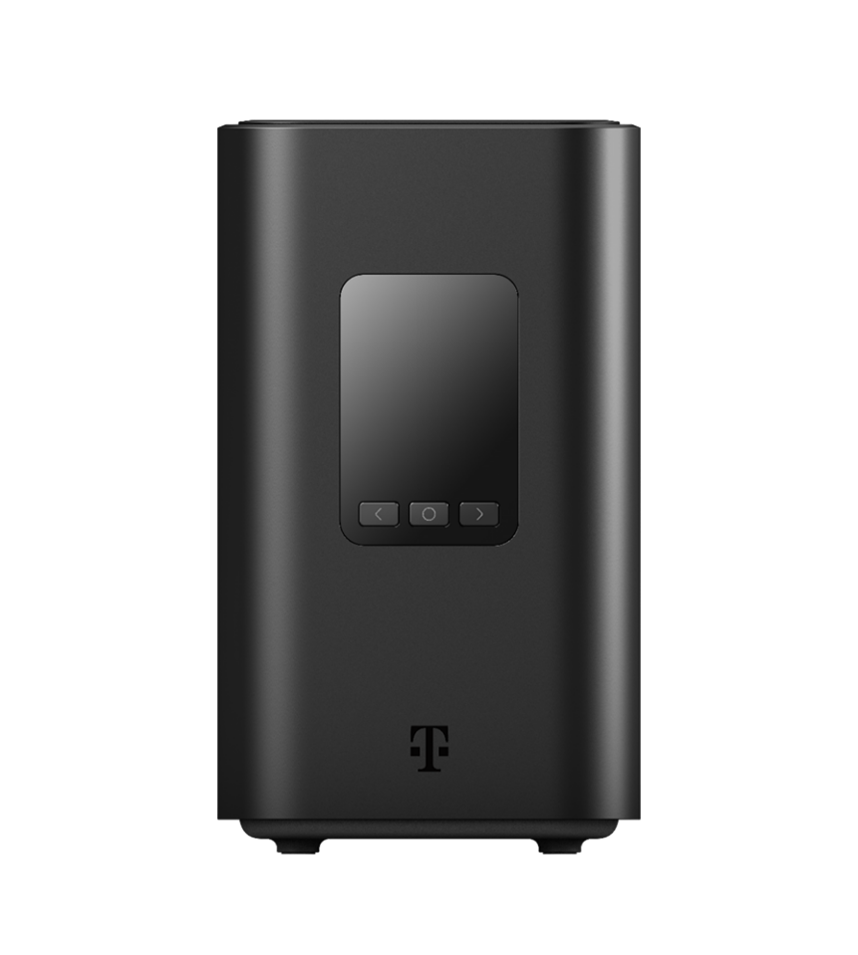
Installing External Antennas to the T-Mobile 5G Internet Gateway
 Before getting started, it’s recommended to run a few indoor speed tests using a device connected to your Gateway’s Wi-Fi. Results may vary slightly, but these tests establish the baseline performance you’re aiming to improve.
Once you’ve measured your baseline internet speeds, you can proceed with installing external antennas. While the T-Mobile 5G Internet Gateway does not have external antenna ports, the internal ports can be accessed and fitted with adapters to allow antenna connections.
In the next section of this guide, we’ll show you how to open the Gateway, connect the external antenna adapters, and securely close the device.
Before you get started, you will need the following:
- A small phillips-head screwdriver
- A small/thin flat-head screwdriver
- A thin plastic prying tool, needle-nose pliers, or tweezers
- Four U.FL to SMA-Female pigtail adapters (included in our 4×4 External Antenna kits)
- Tape for labeling cables. Painters tape works best.
- A secure container to keep screws and small parts safe while you work
Step-by-Step Guide to Installing Adapters for External Antennas
Step 1: Power off the T-Mobile 5G Internet Gateway and unplug the power cable.
Step 2: After partially peeling away the sticker on the back of the device, unscrew the unhidden phillips-head screw.
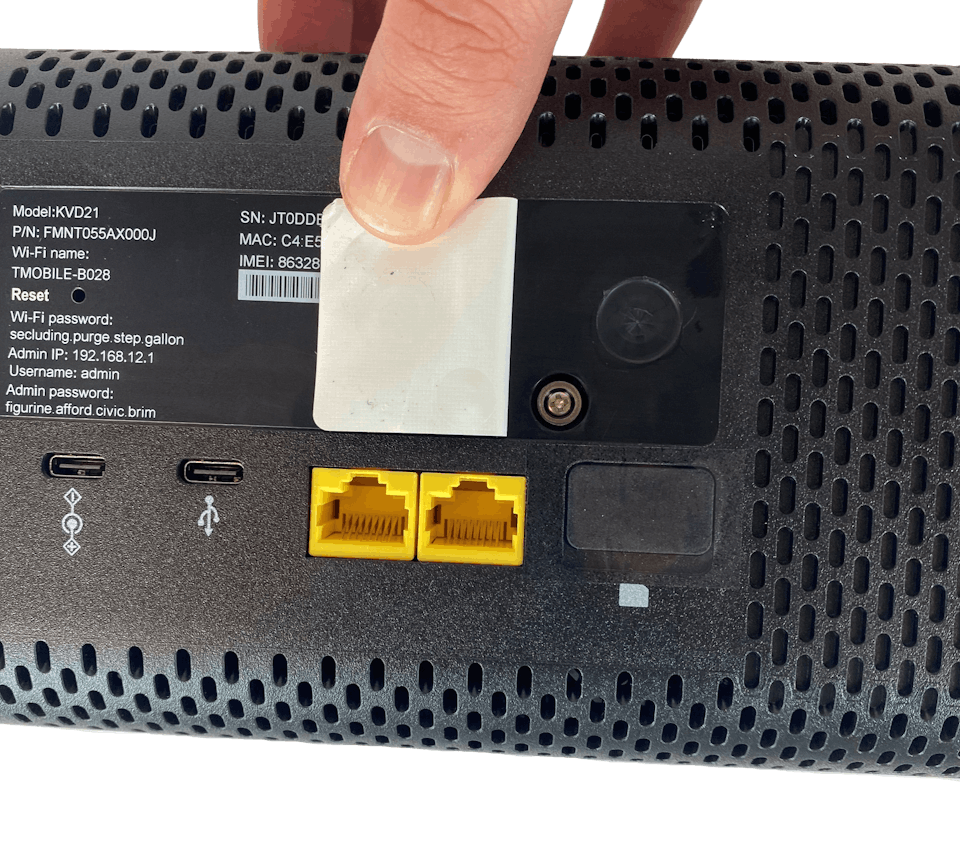
Step 3: Remove the four circular rubber feet on the bottom of the Gateway.
Step 4: Unscrew the four unhidden phillips-head screws securing the bottom cover to the main housing.
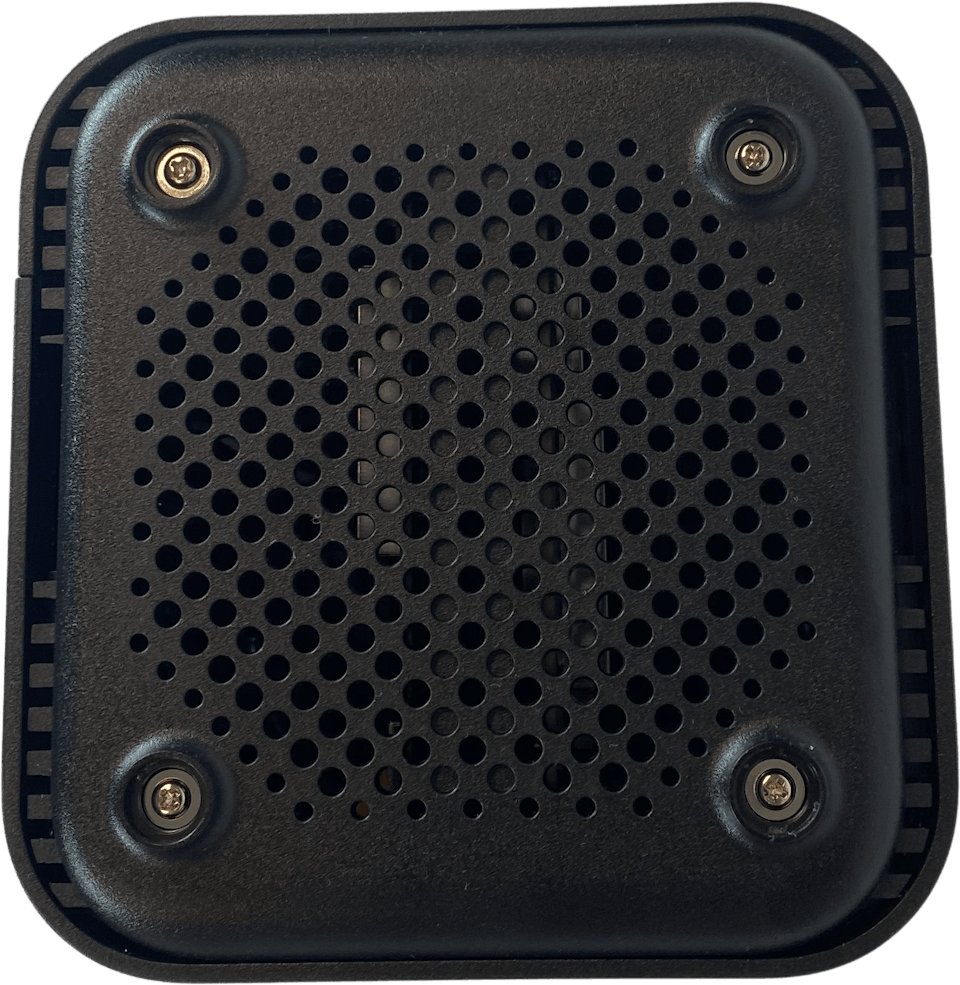
Step 5: Flip the gateway over so that you’re looking at the top cover. Use a flat-head screwdriver to pry up from under each corner of the top cover to gently unlatch each one of the four corners of the top cover.

Step 6: Remove the two phillips-head screws located below the top cover.
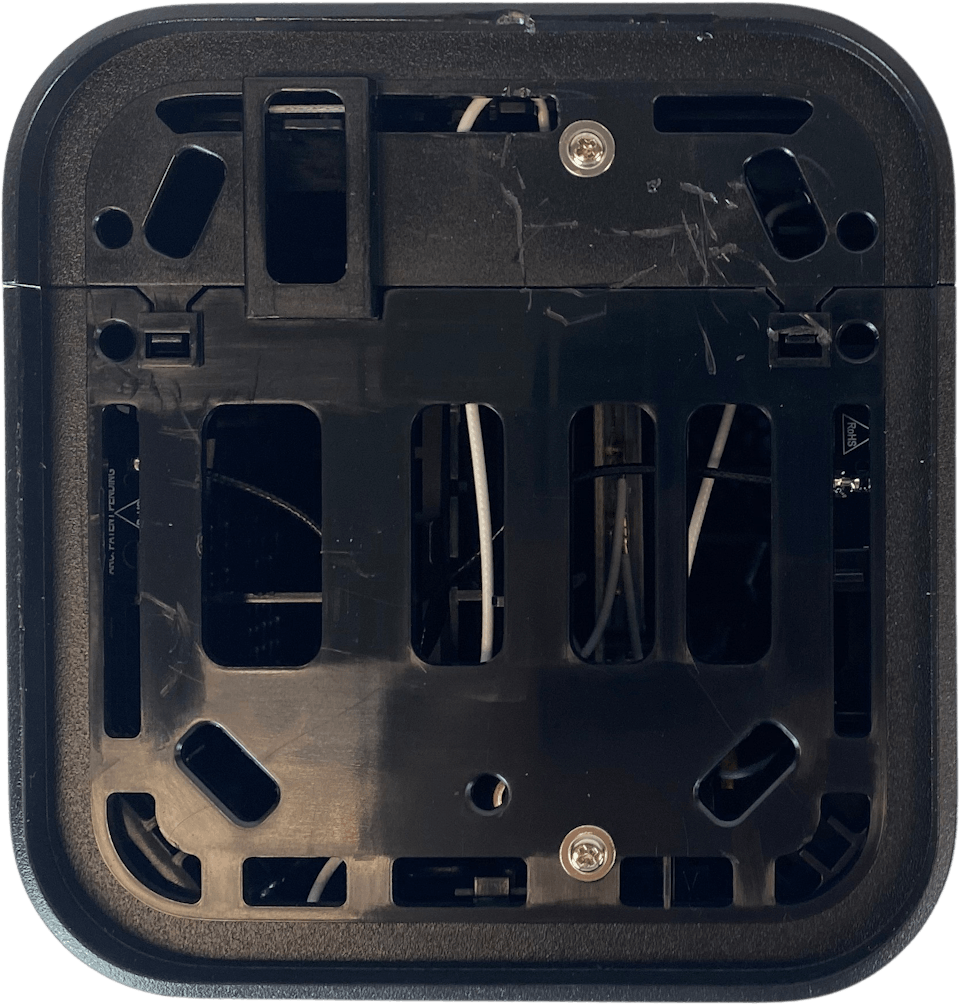
Step 7: Starting from the bottom of the device, slowly unlatch the two halves of the outer cover by going along the length of the device with a flat-head screwdriver.

Step 8: Once both sides are fully unlatched, remove both halves of the outer covers by sliding them off and revealing the inner unit. As shown below:
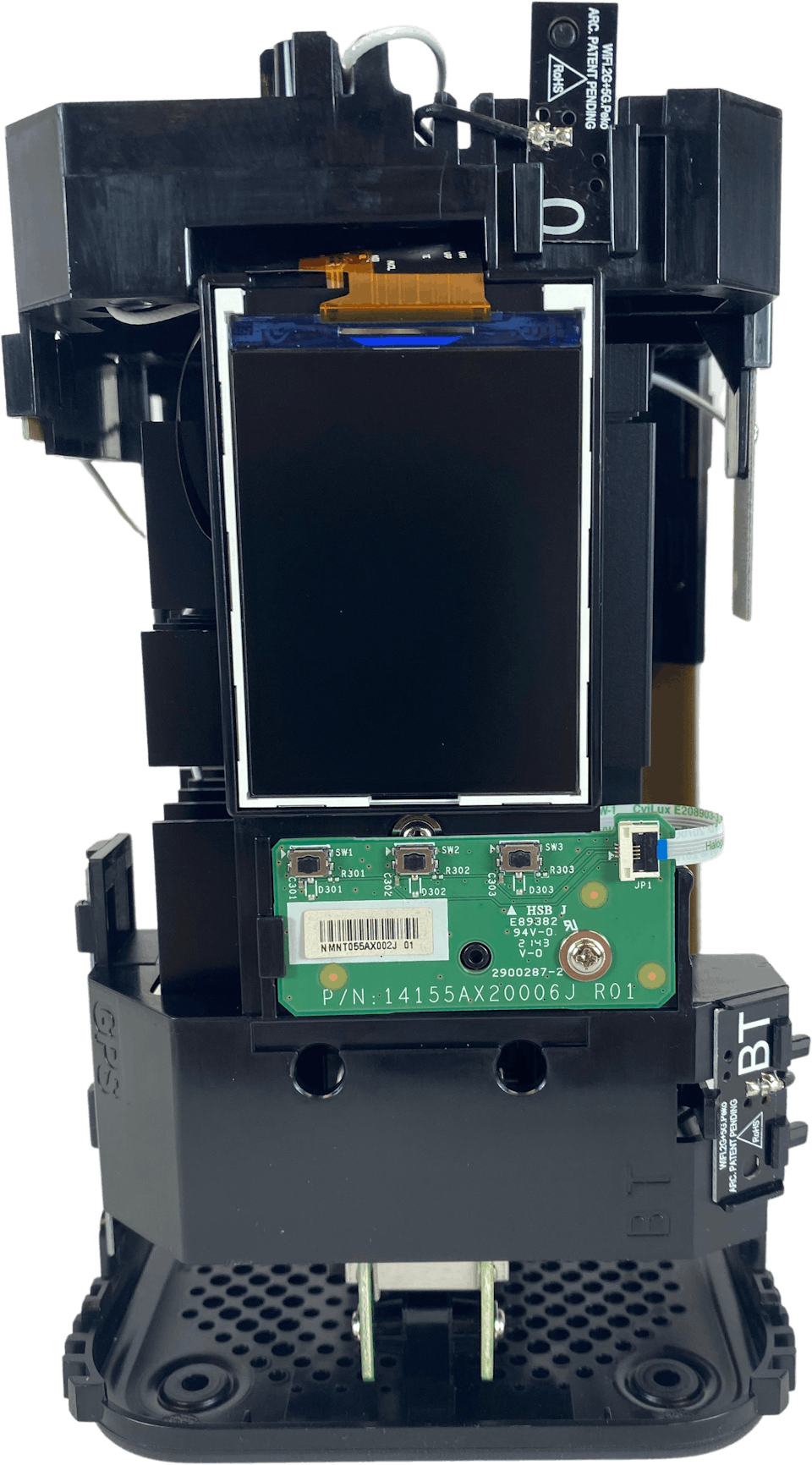
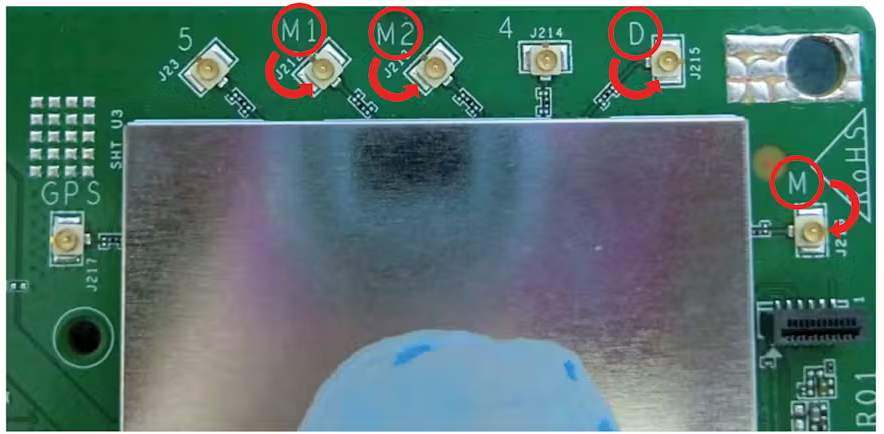
Step 9: Locate the series of white cables behind the display screen, they will be connected to the circuit board by small U.Fl connectors for ports labelled M1, M2, D, and M.
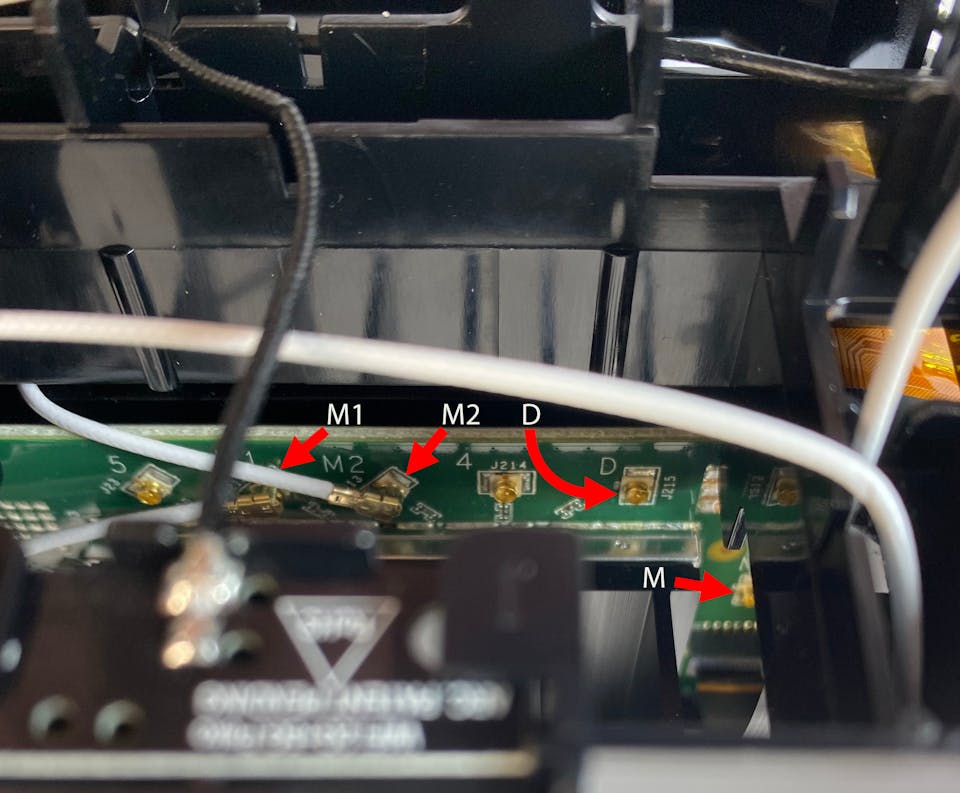
Four of these U.Fl connectors will need to be disconnected. These are the ports that you will connect to your U.FL to SMA-Female pigtail adapters.
Step 10: Using a prying tool or a pair of tweezers disconnect the cables for port M1, M2, D, and M.
Be very careful here as U.Fl connectors can be quite fragile. Make sure you’re very gentle to avoid breaking the connector.
Step 11: Once disconnected from the internal board, wrap each of the loose stock antenna connectors with painter’s/electrical tape to ensure they don’t interfere with the performance of the system.
Step 12: Install the U.FL to SMA-Female pigtail adapters into the ports you opened up in Step 10. Very carefully align and press down on the U.FL connectors to place them into the ports. A quiet “click” can often be heard once the connectors are pressed down and fully connected.
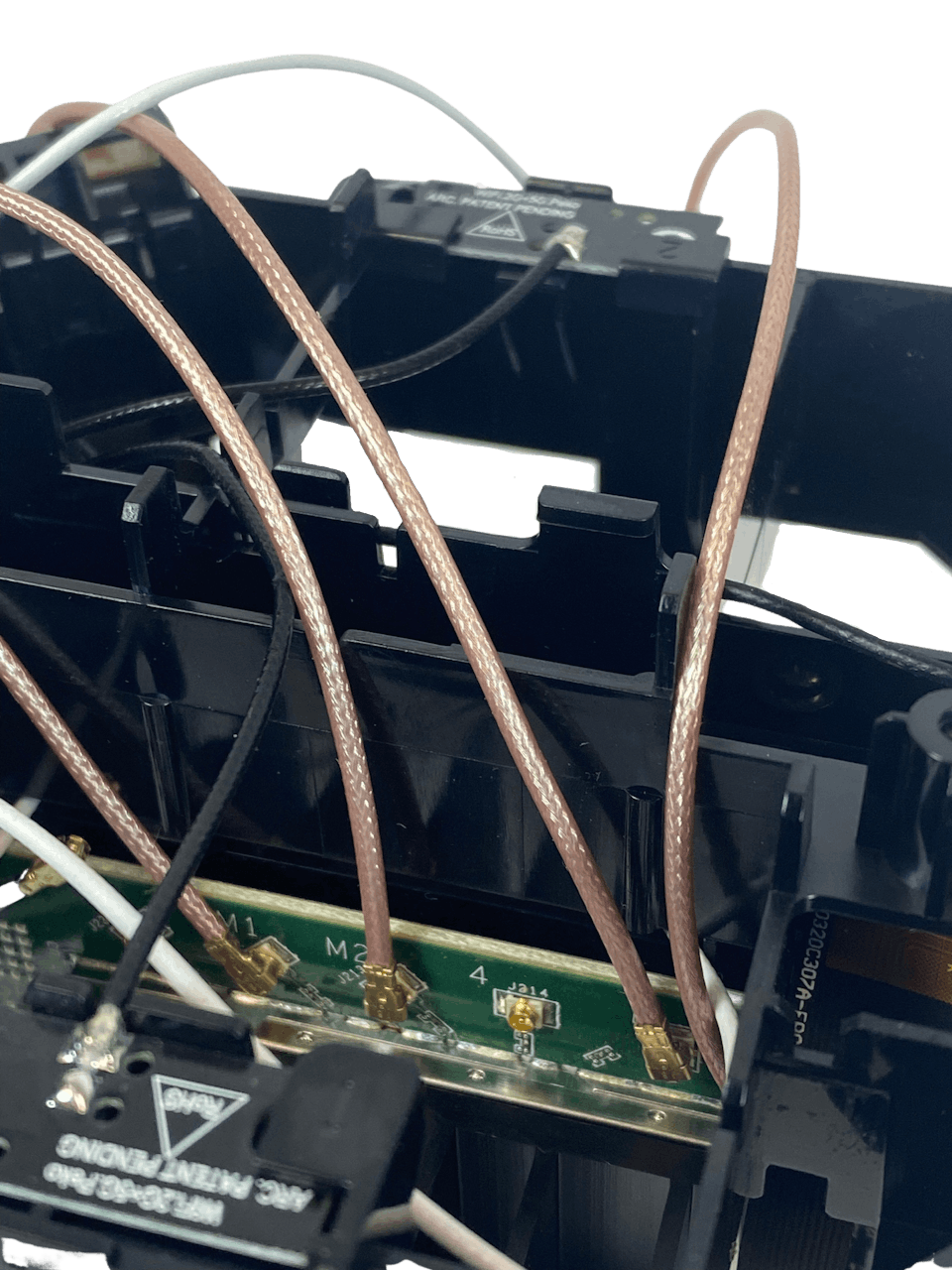
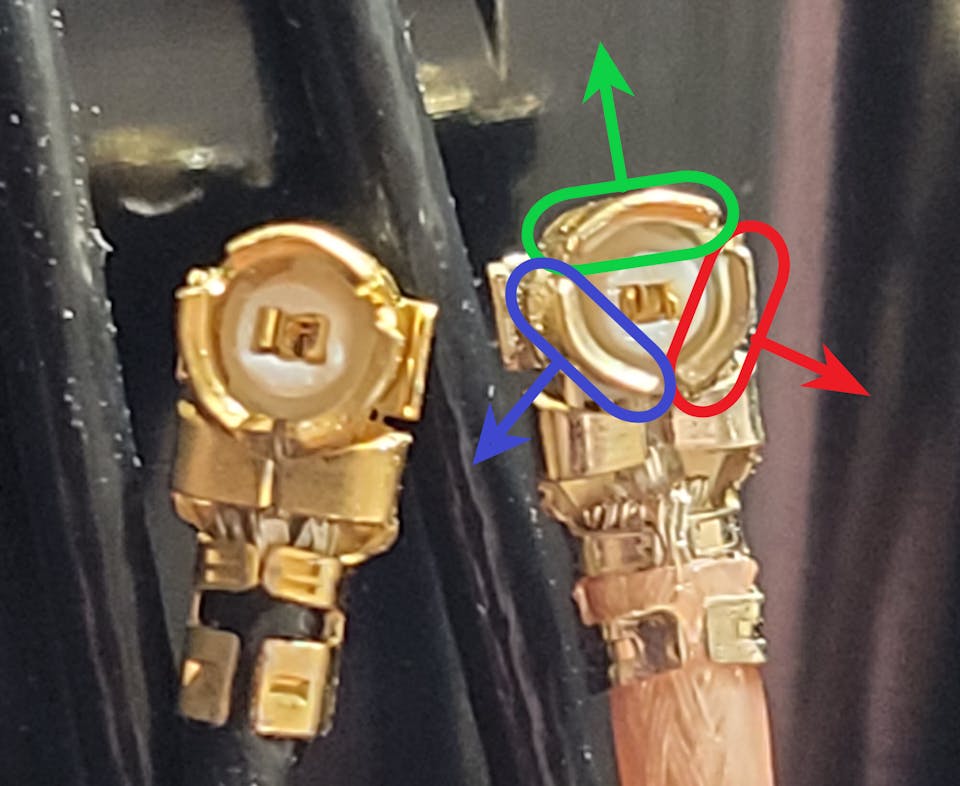
Tip: If you are struggling to get the pigtail connected, we recommend using a tweezers to spread the petals of the U.FL connector further apart, as shown in the image below:
Step 13: Route your pigtail adapters through any one of the set of vents located on the top of the removed outer casing.
Tip: Try to route the pigtails through the vents such that they will be near the ports on the device once re-assembled to avoid any sharp bends and excessive force.
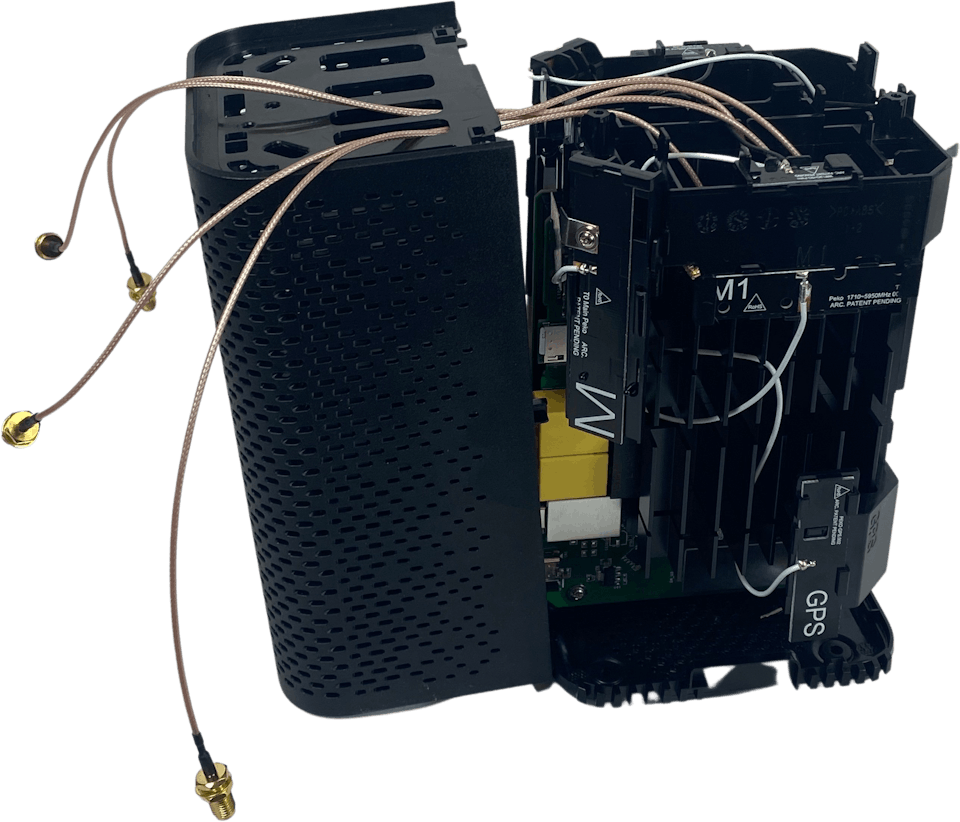
Step 14: For each pigtail adapter tag and label the name of the port (M1, M2, D, or M) that it is connected to. Looping a piece of tape around the cable and writing down the name in pen/marker should suffice.
Step 15: Reassemble everything in reverse order.
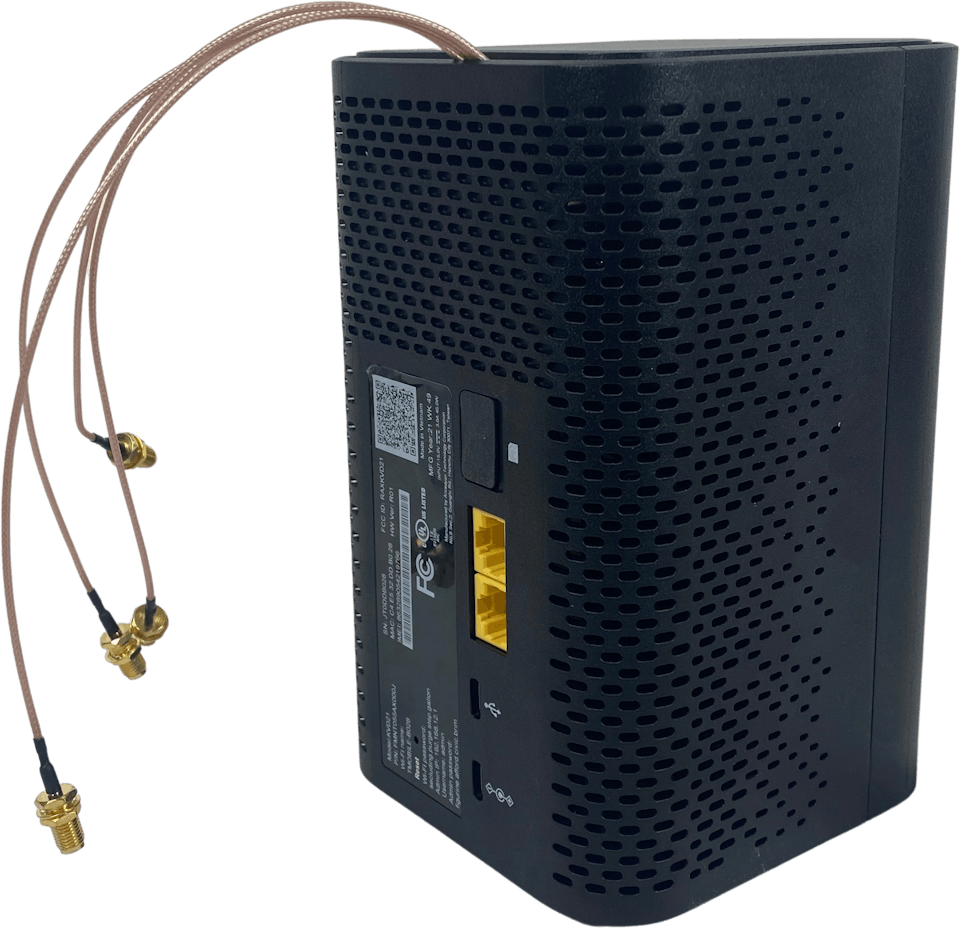
Your T-Mobile 5G Internet Gateway should now be fully re-assembled, with the pigtail adapters protruding from the top.
Step 16: Connect your external MIMO Antenna to the labelled adapters installed in your Gateway using the coaxial cables included in your kit in the order shown below:

Congrats! Your T-Mobile 5G Internet Gateway is now connected to your more powerful MIMO External Antennas.
Positioning and Aiming MIMO Antennas
Positioning and aiming MIMO antennas well is crucial to getting the best performance to your T-Mobile 5G Internet Gateway, or indeed any other hotspot.
We’ve actually compiled a detailed UHURA instruction manual to accompany our own MIMO Antenna Kits, where we go into depth on the best ways to aim the antennas.
The goal is to find the best location and direction for the antenna(s), to maximize data rates to the T-Mobile Gateway. It can take a little patience, but can have a huge impact – it’s worth a bit of extra effort!
Connect your MIMO external antennas to your modified T-Mobile 5G Internet Gateway via the newly installed pigtail adapters, and go outside with your “test-rig”.
With each location and direction you try, run a couple speed tests, and make a note of the results. Here are all the locations and directions where we recommend testing your MIMO antenna:
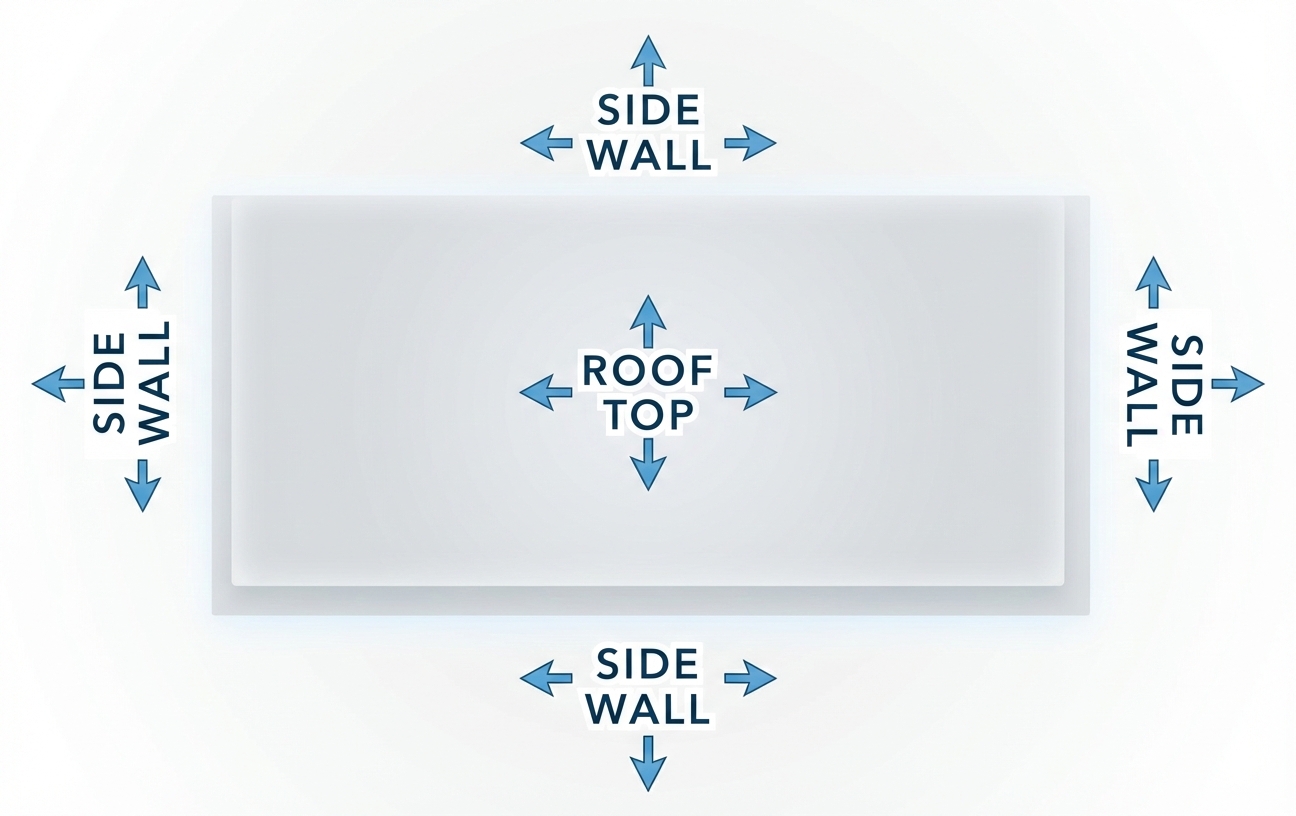
Pro tip: Don’t just go to the highest point of the roof! While signal is generally stronger the higher you go, there’s also often more interference. We’ve found it’s often better to mount the antenna(s) on the side of the building where the structure can shield the antennas from interference.
Once you’ve found the position which gets you the highest data rates to the T-Mobile Gateway, that’s where you’ll want to install the MIMO antenna. Go ahead and mount the antenna, run cables inside, connect everything up, and enjoy superior data rates!
T-Mobile 5G Internet Gateway Technical Specifications
- 5G Bands: n25, n41, n66, n71
- 4G LTE Bands: B2, B4, B5, B12, B41, B46, B66, B71
- Model: MediaTek T750 ARM Cortex-A55
- MIMO Support: 4×4 with internal antennas or external antennas
- Carrier Aggregation: Yes (2x 5G 40 MHz bands, 5x LTE 20 MHz bands)
- LTE Performance Category: Cat 20
- Technologies: 802.11 ax
- Bands: Simultaneous 2.4 GHz and 5 GHz
- Cellular Antenna Ports: 6x internal U.FL
- Ethernet Ports: 2x Gigabit RJ-45 LAN Ports
- Other Ports: 1x USB-C LAN port (not functional), 1x USB-C Power Delivery Port
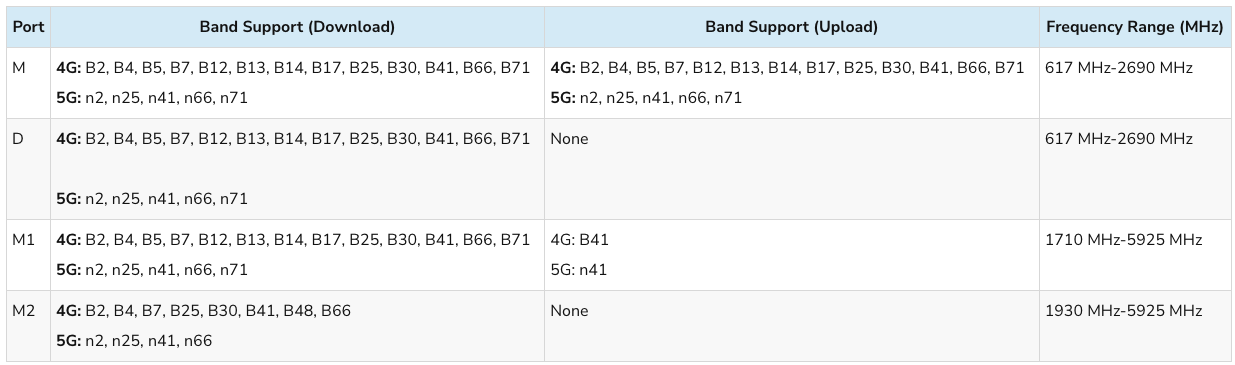
Antenna Port Functions