







Setting Up and Aiming MIMO Antennas
 Properly positioning and aiming MIMO antennas is essential for achieving the best performance with your AT&T Internet Air for Business 5G Gateway—or any router.
The goal is to identify the optimal location and orientation for the antenna(s) to maximize data rates to your 5G Gateway. It may require some patience, but the improvement in performance makes the effort worthwhile.
Before you begin, it’s recommended to run a few indoor speed tests using a device connected to your Gateway’s Wi-Fi. Results may vary slightly, but these tests establish the baseline performance you’ll be working to improve

Open the External Antenna Cover, and attach the MIMO antenna SMA connectors to the Gateway’s SMA connectors.
The Gateway 5G should automatically switch to supporting the external antenna, but just in case it doesn’t, you can toggle between internal and external antennas in the web UI.

With your connected device, use your preferred web browser to access the Web UI.
Using the address bar, navigate to http://attwifi.manager or http://192.168.1.1 to access the login page.
Enter your username and password, then click “Login”.

From the Dashboard, click Network > Network Map > Antenna. From here you can toggle between the internal and external antenna.
Once you’ve got your external MIMO antennas, you’re ready to go outside with your “test-rig.”
With each location and direction you try, run a couple speed tests, and make a note of the results. Here are all the locations and directions where we recommend testing your MIMO antenna:
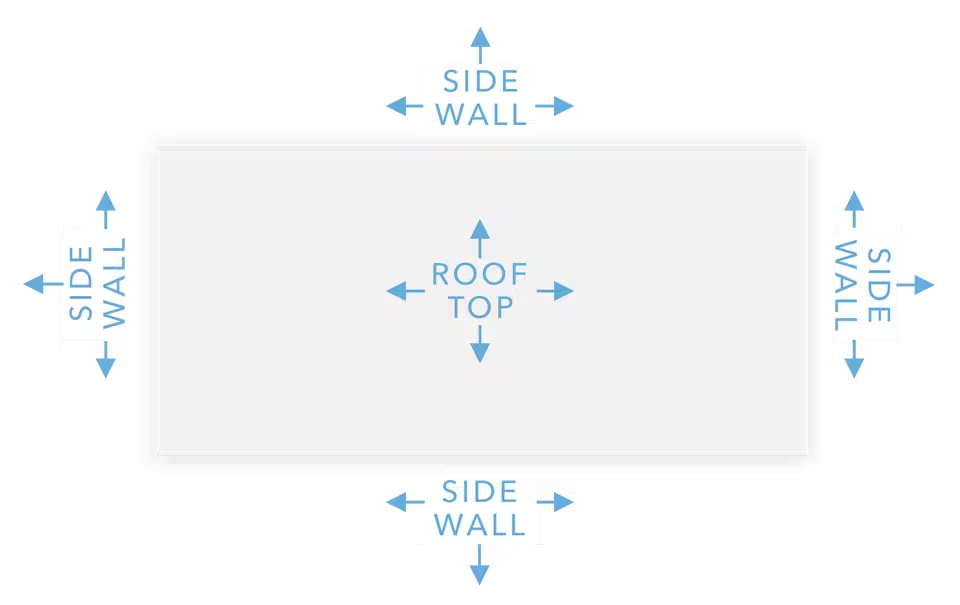
Pro tip:Don’t automatically place antennas at the highest point on the roof! While higher positions can offer stronger signals, they can also be more prone to interference. Often, mounting the antenna(s) on the side of the building—where the structure can provide some shielding—yields better results.
Once you’ve identified the position that delivers the highest data rates to your AT&T Internet Air for Business 5G Gateway, install the MIMO antenna there. Run the cables inside, make the necessary connections, and enjoy improved data speeds!